Running out of storage on your Android phone can be frustrating. Your device may feel slow, apps might stop working properly, and you constantly get storage full warnings.
The good news is that in most cases, you don’t need to buy a new phone or install risky cleaner apps to fix the problem.
In this step-by-step guide, you’ll learn how to free up storage on your Android phone safely and effectively, even if you’re not tech-savvy.
These methods work on all Android phones, including Samsung, Xiaomi, Oppo, and other popular brands.
Check What’s Taking Up Space on Your Android Phone
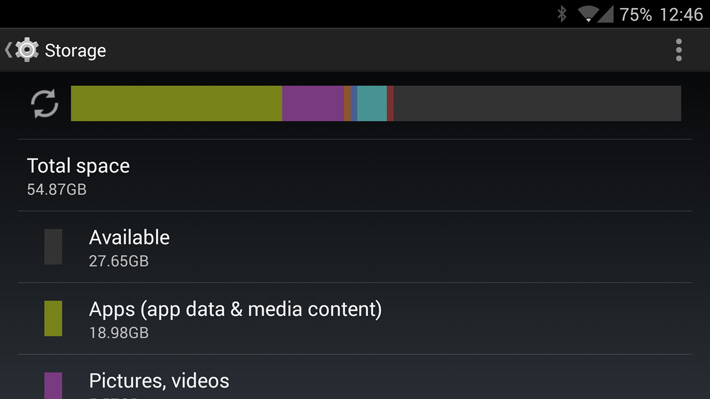
Most Android phones have a built-in tool that shows exactly what is using your storage. This is the first thing you should check before deleting anything.
To see your storage usage:
- Open Settings on your Android phone.
- Tap Storage (on some phones it may be under Device care or Battery and device care).
- Wait a few seconds while your phone analyzes your storage.
You’ll see a breakdown of what is taking up space, such as apps, photos, videos, system files, and cached data. This overview helps you decide what you can safely remove.
Clear Cached Data on Android
Cached data can take up a surprising amount of space on Android phones. Clearing cache is safe and does not delete your personal data or accounts.
To clear cached data on Android:
- Open Settings.
- Tap Apps (or Applications).
- Select an app that uses a lot of storage (for example, Chrome or Instagram).
- Tap Storage.
- Tap Clear Cache (do not tap Clear Data).
Repeat this process for other apps that take up a lot of space. Clearing cache can instantly free up storage and may also improve your phone’s performance.
Delete Large Files and Downloads
Large files and old downloads often take up a lot of space without you realizing it. This includes videos, PDFs, APK files, and documents you no longer need.
To remove large files and downloads:
- Open Files, My Files, or File Manager on your Android phone.
- Go to the Downloads folder.
- Sort files by size (if available).
- Delete old videos, installation files (APK), and documents you no longer use.
You should also check folders like Videos and Documents, especially if you receive many files through apps or the browser. Removing just a few large files can free up a significant amount of storage.
Clean WhatsApp Media Files
WhatsApp is one of the biggest storage killers on Android phones. Photos, videos, voice messages, and forwarded media can quickly fill up your storage without you noticing.
To clean WhatsApp media files:
- Open WhatsApp.
- Tap the three dots in the top-right corner.
- Go to Settings → Storage and data → Manage storage.
- Review large files and forwarded media.
- Select and delete items you no longer need.
You can also disable automatic media downloads in WhatsApp settings to prevent your storage from filling up again in the future.
Uninstall Apps You Don’t Use
Many Android phones come with apps you rarely use. Games, pre-installed apps, and old downloads can take up storage and run in the background.
To remove unused apps:
- Open Settings.
- Tap Apps.
- Sort apps by size or last used (if available).
- Select apps you no longer need.
- Tap Uninstall.
If an app cannot be uninstalled, you may be able to Disable it instead. This stops it from using storage and running in the background.
What NOT to Do to Free Up Storage on Android
When trying to free up storage, many users make mistakes that can cause more problems instead of fixing them.
Avoid the following:
- Do not install “cleaner” apps that promise to magically free up space. Many of them show ads and slow down your phone.
- Do not delete system files unless you know exactly what you’re doing. This can break important phone functions.
- Do not clear app data unless necessary, as this may log you out or delete important settings.
- Do not factory reset your phone unless you’ve tried all other options first.
Following the steps above is usually enough to free up storage safely.
Final Tips to Keep Your Android Storage Free
Once you’ve freed up storage, a few simple habits can help keep your Android phone from filling up again.
Here are some useful tips:
- Regularly review your storage usage in Settings → Storage.
- Enable cloud backups for photos and videos using services like Google Photos.
- Disable automatic media downloads in messaging apps.
- Delete downloads and large files you no longer need every few weeks.
- Keep only the apps you actually use.
These small habits can prevent storage issues and keep your phone running smoothly.
Running out of storage on Android is a common problem, but it’s usually easy to fix. By following the steps in this guide, you can free up space safely without deleting important data or installing risky apps.
Your phone should feel faster, more responsive, and easier to use after cleaning up unnecessary files. Checking your storage regularly will help you avoid this problem in the future.